
Pricing a Villa
Every villa's pricing lives in one place: the Pricing tab on the villa itself. From there you set the base nightly rate that applies year-round, then layer seasons and overrides on top for the dates that should cost something different. The Portfolio tab on Rates & Pricing shows every villa's base rate and coverage at a glance, so you can spot a home that isn't ready to sell.
This is the everyday way to price a home. For work across many villas, use the Seasons, Events, and Import tabs on the Rates & Pricing page.
The Two Building Blocks
A villa's price on any given night comes from two kinds of thing:
- The base nightly rate: the price for every date, unless something more specific covers it. Every villa needs one before it can sell.
- Exceptions: dates priced differently from the base. There are two kinds:
- A Season is a long stretch with its own nightly rate, such as high season or green season.
- An Override is a short stretch priced for a reason, such as a holiday week or a local event.
When two exceptions cover the same date, the shorter one wins, and an override beats a season. That rule lets you drop a three-night holiday override on top of a three-month high season without editing the season.
Opening the Pricing Tab
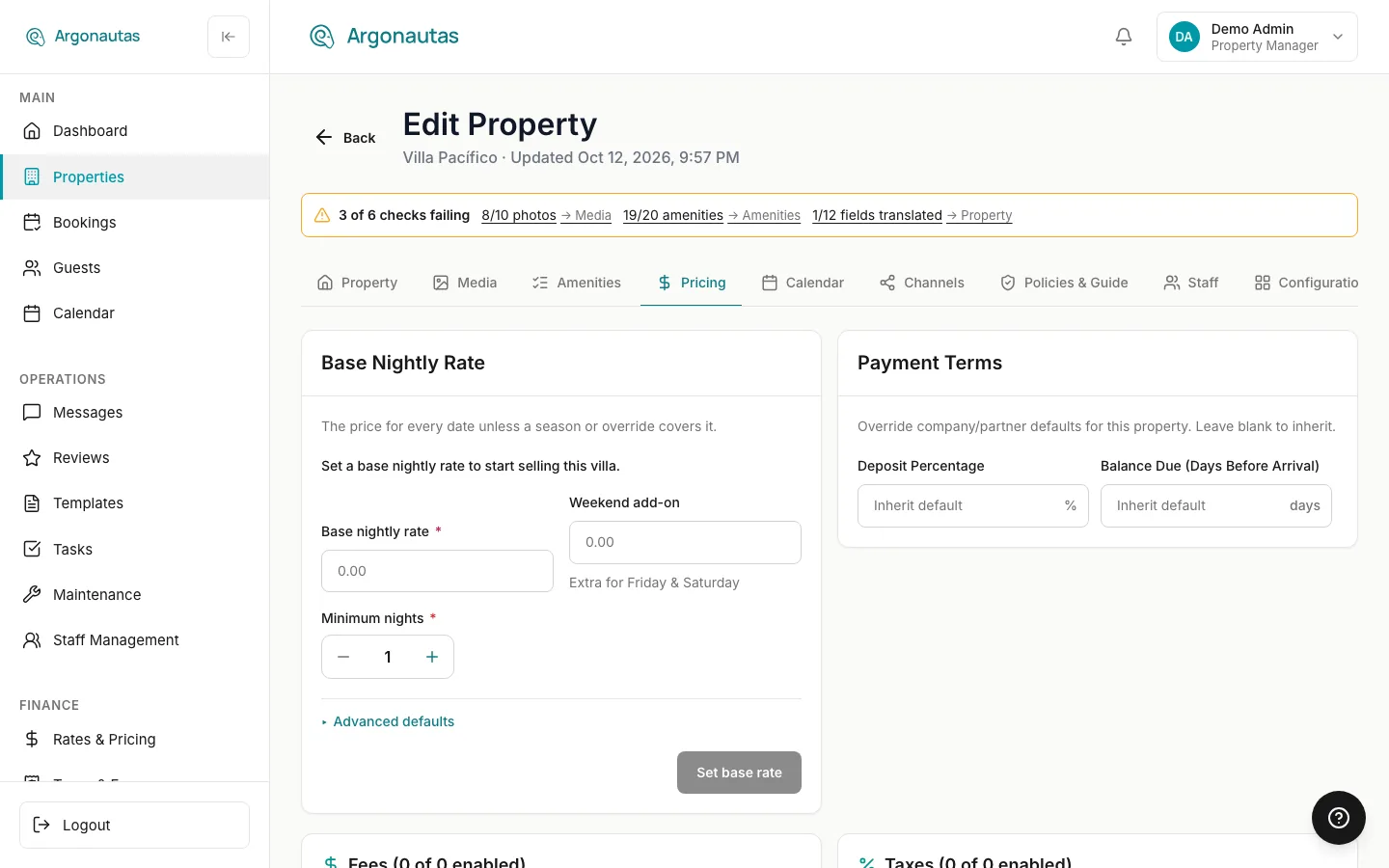
Open a property and select the Pricing tab. Top to bottom, a single-unit villa shows:
- Base Nightly Rate, beside Payment Terms
- Fees and Taxes
- Add-ons, beside Property-specific fees
- Seasons & Overrides
A multi-unit villa is slightly different. See Multi-Unit Villas below.
Step 1: Set the Base Nightly Rate
The Base Nightly Rate card is "the price for every date unless a season or override covers it." Until you set one, the villa can't be sold, and the card prompts: "Set a base nightly rate to start selling this villa."
Fill in:
- Base nightly rate: the standard per-night price.
- Weekend add-on: an extra amount for Friday & Saturday nights, if you charge more on weekends.
- Minimum nights: the default shortest stay.
Under Advanced defaults you'll also find Maximum nights, Orphan minimum stay, Base guests, and Extra guest fee. On a partner-managed villa, this is also where the Partner net nightly rate and Partner net weekly rate live.
Click Set base rate (or Save base rate once one exists). If the villa already has seasons with untouched gaps between them, the card asks you to close those first: "This villa has coverage gaps. Add seasons to cover them before setting a base."
Step 2: Payment Terms, Fees, and Add-ons
Below the base rate, Payment Terms sets this villa's Deposit Percentage and Balance Due (days before arrival). Leave either blank to Inherit default from your company settings.
The next cards control what is charged on top of the nightly rate:
- Fees and Taxes -- The company-wide fees and taxes this villa inherits, with a count such as Fees (2 of 3 enabled). Switch any of them off for this villa, or override the amount or percentage. See Fees and Taxes.
- Add-ons -- Optional extras guests can choose, such as a high chair or an extra bed, priced Per stay, Per night, or Per week. Click Add add-on to create one. See Add-ons.
- Property-specific fees -- Mandatory flat fees that only this villa charges, such as a damage waiver, optionally charged only from a Minimum guests count. Click Add fee to create one. See Property-specific fees.
Step 3: Add Seasons and Overrides
The Seasons & Overrides card holds every date priced differently from the base ("Dates priced differently from the base rate."). It has two views, toggled at the top right: List and Calendar.
List view
Click Add exception. A chooser asks "Which kind of exception are you adding?" Pick Season or Override (defined above), click Continue, then fill in the dates, nightly price, and any stay rules.
The table below lists everything chronologically, with columns Name, Dates, Min nights, Price, and edit/delete actions, each row badged Season or Override. When nothing is set yet, it reads "No seasons or overrides yet" and "Every date uses the base nightly rate until you add one."
Calendar view
The Calendar view opens with an 18-month coverage strip: a colored bar showing which dates are priced by the base, a season, or an override, and whether coverage is complete or has gaps ("{n} coverage gaps — add seasons to cover them.").
Below it is a paintable month grid: drag across a date range and a popover opens to price it. In create mode you choose Season or Override. For an override, pick a Price type: Set price (a flat nightly price) or Add to rate (an amount added on top of the base). Then enter the price or amount and a short Reason. Need length-of-stay rules or per-guest pricing on the exception? More options → opens the full editor.
On a few villa types (for example a shared multi-unit rate template), the calendar can't draw the rates and shows "Calendar view isn't available here." Use the List view to manage seasons and overrides there.
The Rates Portfolio (/rates)
Rates & Pricing › Portfolio is the fleet overview: every villa's base rate and coverage at a glance.
Villas are grouped by partner, with Direct villas last. Each group's header shows how many villas it holds and how many still need a base rate. Use the Search villas… box, and the partner filter when you manage more than one partner, to narrow the list. The toolbar shows the villa count and, when any villa lacks one, how many need a base rate.
The List | By month switch changes how coverage is shown:
- List gives each villa its Base rate and a Coverage badge: Complete, No base, or {n}-day gap.
- By month gives one column per month for about the next 18 months. A check mark means every night that month has a rate. A number counts the nights without one.
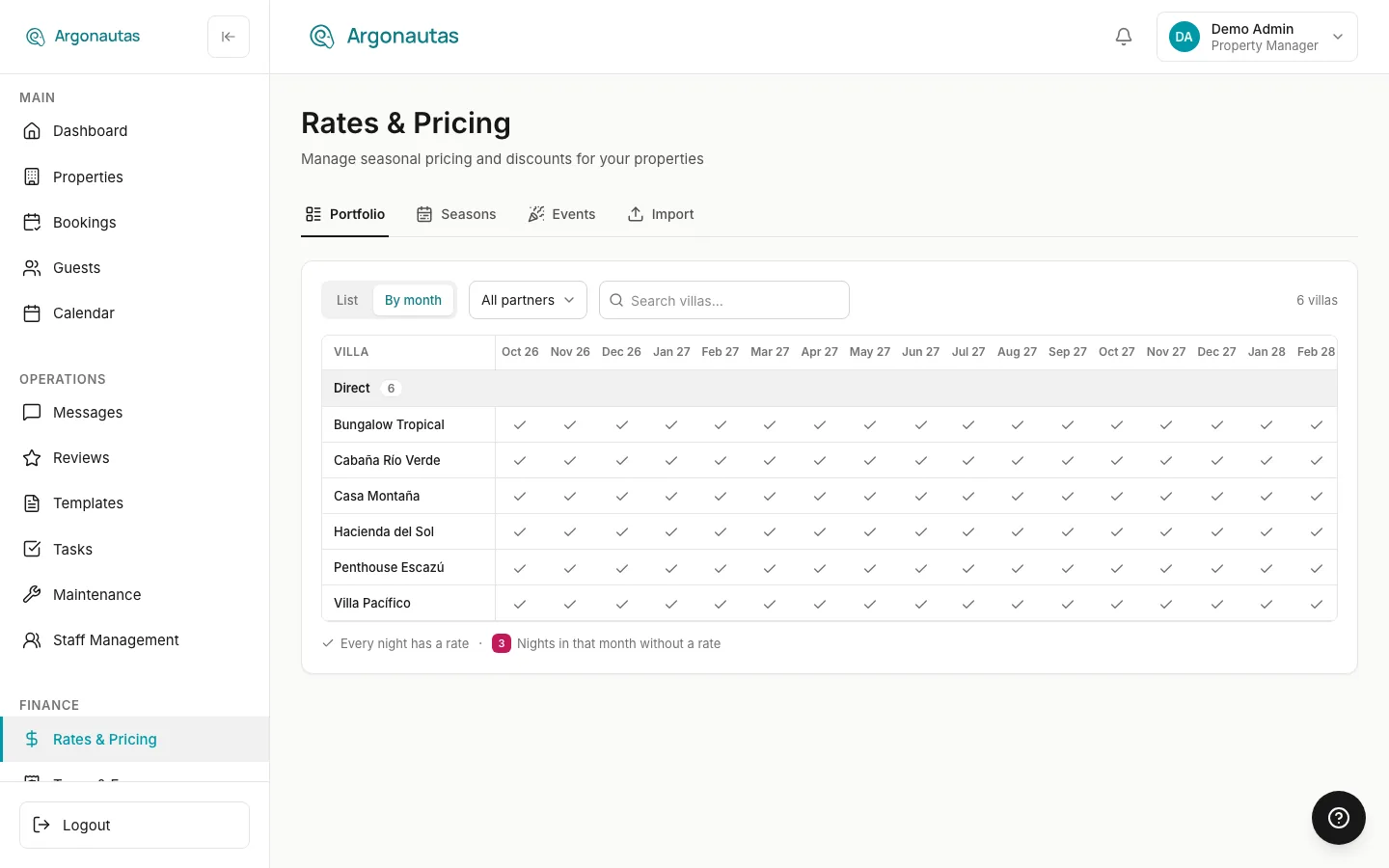
Click any row to jump straight into that villa's Pricing tab. This is the fastest way to work through the portfolio: open the Portfolio tab, find the homes flagged incomplete, and fix each one at the source.
The rest of Rates & Pricing
The Rates & Pricing page has three other tabs, for bulk or multi-villa work:
- Seasons (
/rates/seasons): season templates and the villa rates that use them, in one place. See Seasonal Rates. - Events (
/rates/overlays): short, event-driven adjustments layered on a season or the base. These are the same thing as the Pricing tab's overrides. See Rate Overlays. - Import (
/rates/import): bring rates in from a CSV. See Rate Import.
You don't need these for day-to-day pricing, because the Pricing tab covers a single villa end to end. Reach for the Seasons, Events, or Import tabs when you're setting up a whole season across many homes at once.
Multi-Unit Villas
On a multi-unit property, the Pricing tab shows a sub-tab per unit type, and each unit type carries its own base nightly rate through its rate template. Payment Terms, Fees, Taxes, Add-ons, and Property-specific fees are not shown for these properties. If there is no rate template yet, the tab shows "No rate template available — add at least one unit to enable pricing." Add a unit to the property first.
Key Concepts
- Base nightly rate: the price for every date unless an exception covers it. Required before a villa can sell.
- Season: a long stretch with its own nightly rate.
- Override: a short stretch priced for a specific reason; can set a price or add to the base.
- Resolution rule: when exceptions overlap, the shorter one wins and an override beats a season.
- Coverage: whether every date is priced. Gaps between seasons must be filled before setting a base.
- Portfolio: the Rates & Pricing tab that shows every villa's base rate and coverage.
- Add-on: an optional paid extra the guest chooses, set up per villa on the Pricing tab.
- Property-specific fee: a mandatory fee only this villa charges, optionally from a minimum number of guests.
Common Questions
Where did the old pricing screens go? They're all on the Rates & Pricing page, as tabs: Portfolio (the fleet overview), Seasons (season templates and villa rates), Events (overlays), and Import (CSV). The per-villa Pricing tab is the faster path for one home.
What's the difference between a season and an override? Length and intent. A season is a long block (high season) with its own rate. An override is a short, specific block (a holiday week). When they overlap, the override wins.
"Set price" vs "Add to rate" on an override?Set price replaces the nightly price for those dates outright. Add to rate keeps the underlying rate and adds an amount on top. It is handy for a flat weekend or holiday premium.
Why won't it let me set a base rate? The villa has coverage gaps between existing seasons. Fill those gaps first (add seasons to cover them), then set the base.
A villa shows "Needs base rate" in the portfolio. It has no base nightly rate yet, so it can't sell. Click the row, set a base rate on its Pricing tab, and the badge clears.
Related
- Pricing Guide: the concepts behind rates and how a night's price is resolved.
- Seasonal Rates: seasons and season templates in depth.
- Rate Overlays: overrides and event-driven adjustments in depth.
- Fees and Taxes: the fees, overrides, and property-specific fees on the Pricing tab.
- Add-ons: optional extras guests can add to a booking.