
Sync Troubleshooting
When a villa falls out of step with its OTA channels, guests can see stale rates or book dates that are already taken. This page shows where to look and how to fix the most common problems.
Where to Look
| Where | What it tells you |
|---|---|
| Channel Manager status line | Last push, pushes and failed pushes in the last 24 hours, villas with sync errors |
| Channel Manager villa table | Each villa's status (Sync error shows a problem) and the state of each OTA chip |
| Channel Manager › All logs | Every push and pull, with its status and message |
| Alerts (sidebar, under Distribution) | Problems that need a person: unmapped rooms or rates, disconnected channels, failed bookings |
Click Need attention on the Channel Manager page to see only the villas with a sync error, a pending first sync, no connection yet or a broken OTA link.
Reading the Sync Logs
- Click Channel Manager in the sidebar.
- Click All logs on the status line or under Recent activity.
- Pick a Status (Success or Error) and an Operation (Property, Rates & Pricing, Availability, Bookings or Photos), then click Apply Filters.
- Click the eye icon on an entry to see its full details and error message.
- Click Load more at the bottom for older entries.
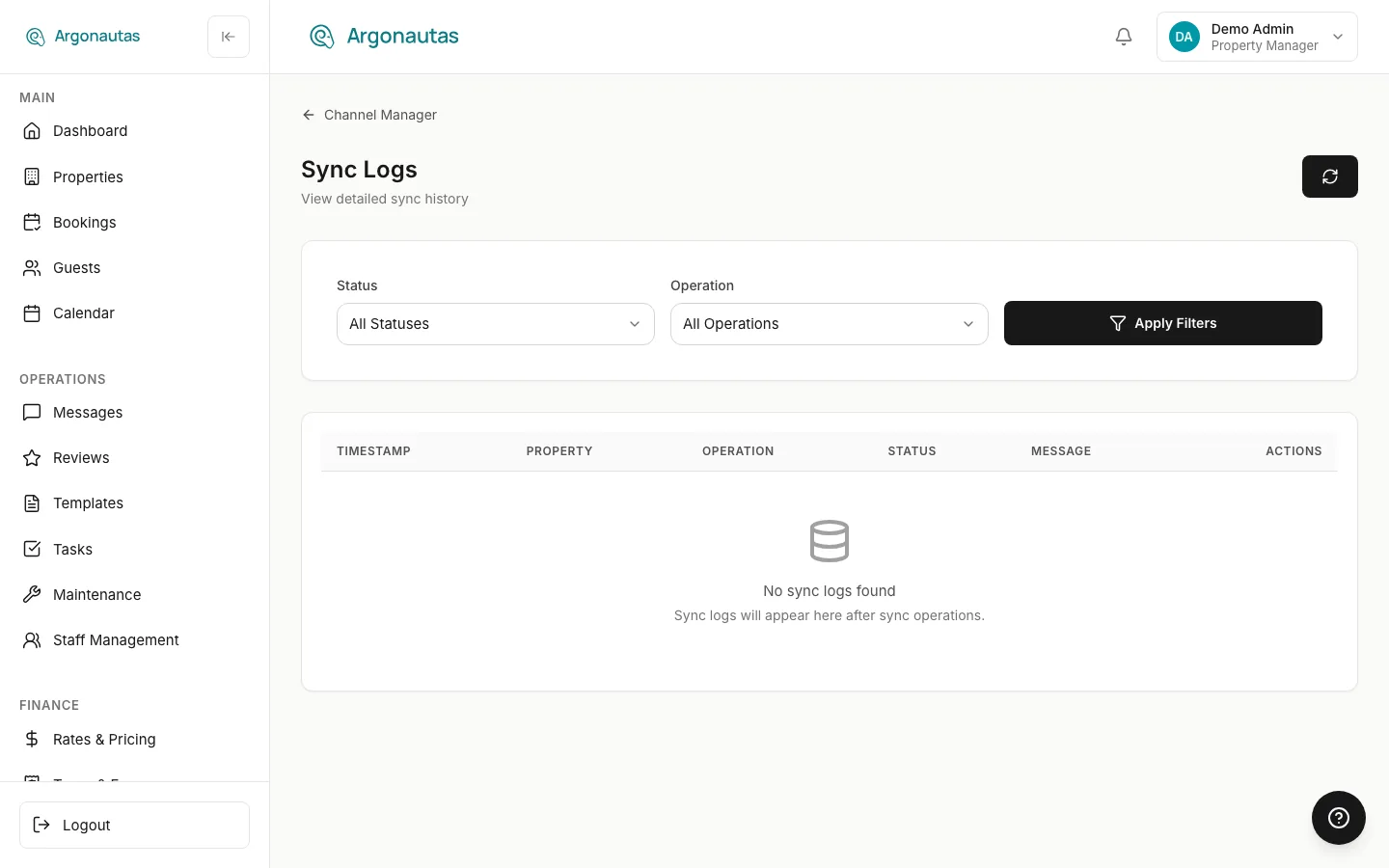
Each entry shows when it ran, the villa, the operation and its direction (Push or Pull), the status and the message. For troubleshooting, filter on Error.
Channel Alerts
Some problems need a person to act, not a retry. These raise an alert. The Alerts entry in the sidebar shows a badge with the number of open alerts.
- Click Alerts in the sidebar.
- Filter by Severity (Critical, Warning, Info), Alert Type and Status (Unacknowledged or Acknowledged), then click Apply Filters.
- Open an alert to see the villa, when it was raised and any extra data.
- Fix the cause, then click Acknowledge. An alert for an Airbnb booking request or change request offers Open conversation, which opens the guest's conversation in the inbox, where you answer the request. See Airbnb Requests.
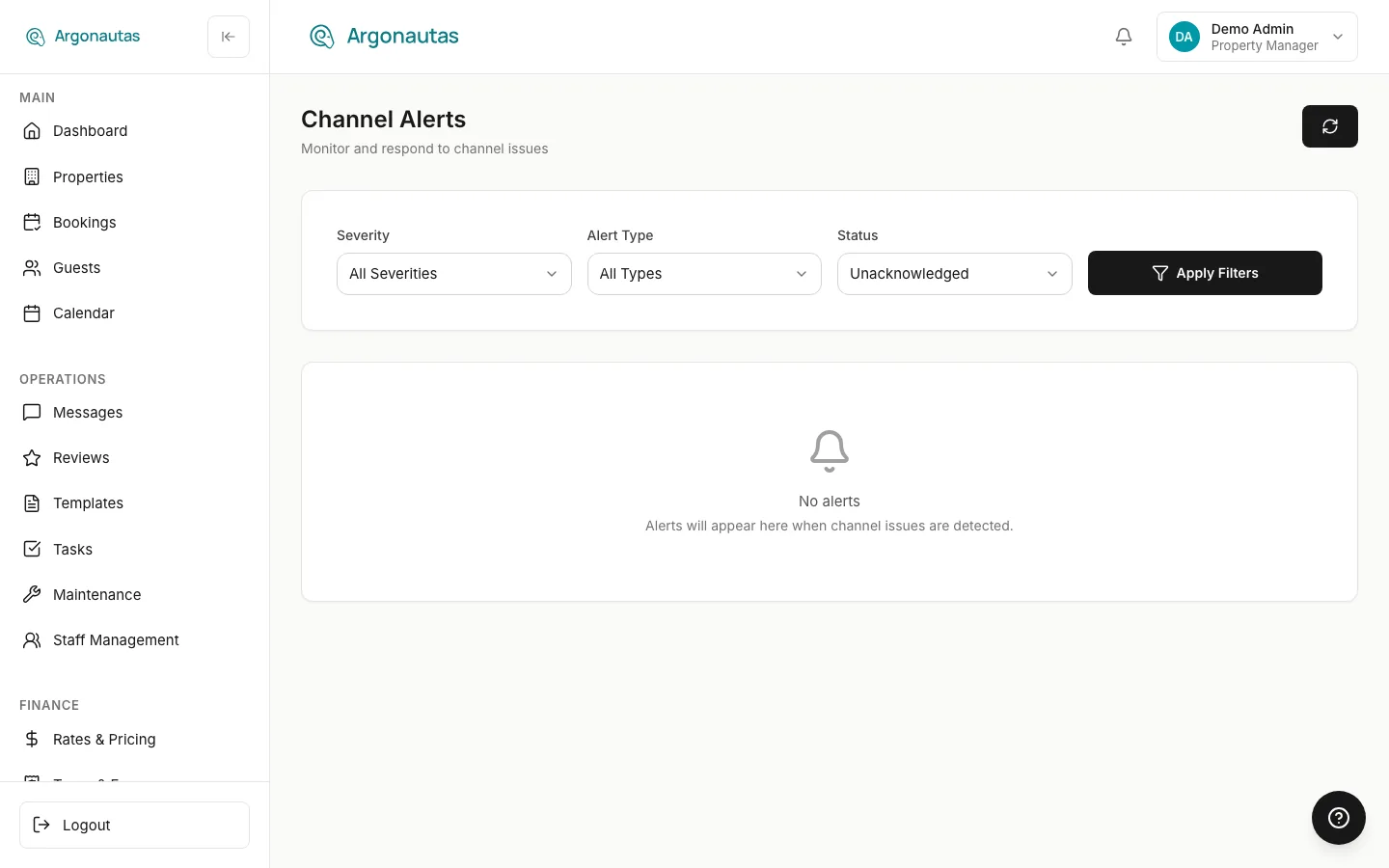
Common alert types include Unmapped Room, Unmapped Rate, Sync Error, Rate Error, Channel Disconnected, Listing Disconnected and Booking Ingestion Failed.
Common Sync Errors
Rate Sync Failures
Symptom: Rates on the OTA do not match Argonautas. The sync log shows errors on Rates & Pricing operations.
Common causes:
- Currency mismatch. The villa's currency differs from the currency on the OTA listing.
- Rate out of range. Some OTAs reject rates below or above a threshold.
- Unmapped rate plan. The OTA expects a rate plan that is not mapped on the villa's Channels tab. This also raises an Unmapped Rate alert.
- Gaps in coverage. Dates with no season or base rate leave the OTA without a price.
Fix: Check the villa's rates on Rates & Pricing (the Seasons tab, By villa) and its Pricing tab. Make sure every date in the next 12 to 24 months has a rate. Then click Sync now on the villa's row.
Availability Conflicts
Symptom: A villa shows as open on an OTA when it should be blocked, or the other way round.
Common causes:
- A push failed and the OTA kept old availability.
- A block made in Argonautas did not reach the OTA during a short connection problem.
- Two bookings arrived from different channels at almost the same moment.
Fix: On the Channel Manager page, click Sync now on the villa's row. Then check All logs to confirm the push succeeded.
Content Push Errors
Symptom: The listing's description, photos or amenities on the OTA are out of date or incomplete.
Common causes:
- A photo is too large or too small for the OTA.
- The OTA needs a field that is empty in Argonautas.
- A title or description is longer than the OTA allows.
Fix: Read the error message in the log entry. It usually names the field. Update the villa under Properties, then click Sync now on its row.
Connection Errors
Symptom: Every sync for a villa (or for every villa) fails, or an OTA chip on the villa's row turns red or grey.
Common causes:
- The OTA connection was disconnected or its access expired.
- The OTA or the distribution network is having an outage.
- A temporary network problem stopped the push.
Fix: Open the villa's Channels tab (click its row) and check each OTA connection. Reconnect any that show an error. For outages, wait: syncing resumes on its own once the connection is back.
Pushing a Villa Again
- Click Channel Manager in the sidebar.
- Find the villa in the table.
- Click Sync now on its row.
- Wait for the confirmation message.
- Open All logs to confirm the push succeeded.
Sync all villas at the top of the page queues a sync for every connected villa. Use it sparingly, for example after a long outage.
When to Disconnect and Reconnect
Rarely, a villa's channel mapping breaks and syncs keep failing even though the data is correct. Before you disconnect, check that:
- The villa's data is complete and valid.
- Other villas sync fine, so the connection itself works.
- Several Sync now attempts have failed.
Disconnecting removes the villa's mappings. You then map it to its OTA listings again, and the listing may show as unavailable for a short time. Contact your administrator before you do this, because it affects live OTA listings.
Key Terms
- Sync log: a timestamped record of every push and pull between Argonautas and the distribution network.
- Push: data sent from Argonautas to the OTAs (rates, availability, content).
- Pull: data received from the OTAs (new bookings, changes, cancellations).
- Alert: a problem that needs someone to act, such as an unmapped room or a disconnected channel.
Common Questions
How often does automatic syncing run? Availability syncs in real time. Rates push every hour. Content pushes every 24 hours. You can push a villa at any time with Sync now.
A villa shows "Sync error" but its data looks right. What do I do? Open All logs, filter on Error and read the villa's latest message. It often points to a specific field. If it is unclear, try Sync now, because short-lived errors often clear on the next attempt.
Will a sync error cause a double booking? It can. If availability fails to push after a booking, other channels may still show those dates as open. Check the Channel Manager status line daily and fix errors promptly.
Can I filter the sync logs by date? No. The logs list the newest entries first. Filter by status and operation, then use Load more to go further back.
Related
- Channel Integration: setting up and managing OTA connections.
- Syncing Villas: Sync now, Sync all and the sync statuses.
- Calendar & Availability: how availability is managed and synced.
- OTA Booking Modifications: how booking changes sync across channels.
- Airbnb Requests: answering the booking requests and change requests behind Airbnb alerts.