
Smart Locks & Door Codes
Smart Locks connects the door locks in your villas to Argonautas. Once a villa's locks are connected and mapped, Argonautas can create a door code for each reservation, have it work from check-in to check-out, show it to the guest in their portal, and remove it from the lock when the stay ends or the booking changes. Nobody has to type codes into a lock app by hand.
The setup has three steps:
- Connect the account that controls the locks (yours or the owner's).
- Map each lock to its villa.
- Let the codes run. From then on, every eligible reservation at that villa gets its own code.
Who can use it. Smart locks are managed by tenant admins and property managers, from Settings → Integrations → Smart Home and from each property's Smart Home tab. Concierges, staff, and owners do not see these screens. Guests see only their own code, in their guest portal.
Two parts are switched on by Argonautas, not in the app.
- Automatic door codes run only once smart-lock automation has been enabled for the platform by the Argonautas team. Until then you can connect accounts and map locks, but no codes are created and guests see no door-code card.
- Yale and Kwikset connections go through Seam (see below), which the Argonautas team also enables separately. If it isn't on, clicking Continue to Seam shows the error "Seam onboarding is disabled."
If you're not sure whether these are on for you, contact Argonautas support before relying on door codes for a real arrival.
Supported Lock Brands
When you connect a lock account, you first pick the brand from the Lock brand cards:
| Brand | How it connects | Who it can belong to |
|---|---|---|
| Tuya | You enter the Tuya cloud project's Access ID, Access secret, and Data center region | Your company or an owner |
| Yale | The owner signs in through Seam's secure login. No credentials are entered in Argonautas | An owner only |
| Kwikset | The owner signs in through Seam's secure login. No credentials are entered in Argonautas | An owner only |
| TTLock, Aqara, Schlage | Shown with a Coming soon badge. They can't be selected yet. | -- |
Seam is a secure connection service that Argonautas uses for Yale and Kwikset. The owner logs in to their lock account on Seam's own page, so their password is never shared with Argonautas.
Where You Connect Each Account
| You want to connect... | Go to |
|---|---|
| Your company's own Tuya project | Settings → Integrations → Smart Home, Locks section |
| An owner's Tuya project | The villa's Smart Home tab → Connect the owner's lock account |
| An owner's Yale or Kwikset account | The villa's Smart Home tab → Connect the owner's lock account (Settings can't do this) |
If you select Yale or Kwikset in Settings, the form is replaced by this note: "Yale and Kwikset are connected per owner. Open the property's Smart Home tab and connect the owner's account there."
Connecting from a villa needs the property to have an owner selected (on the Property tab, under Managed by → Owner). If it doesn't, the tab shows "This property has no owner entity. Connect a company account in Settings instead." Because Yale and Kwikset can only be connected for an owner, a villa with no owner selected can't use them until you set one.
Whichever way an account is connected, it appears in the Locks list in Settings, labeled with the owner's name or Company.
Connect a Tuya Account
You'll need the Access ID and Access secret of the Tuya cloud project that the locks are linked to, and the project's data center region. These come from the Tuya developer platform, where the Tuya app account that owns the locks is linked to the project. One Tuya project can serve many villas.
Your company's project (from Settings):
- Go to Settings, open the Integrations tab, and scroll to Smart Home.
- In the Locks section, select the Tuya card.
- Enter an Account name (for your own reference), choose the Data center region (Europe, United States, China, or India), and paste the Access ID and Access secret.
- Click Connect Tuya project.
- On the new account, click Discover devices to find its locks.
An owner's project (from the villa):
- Open the property and select its Smart Home tab.
- In the Locks section, under Connect the owner's lock account, select Tuya.
- Enter the Account name, Data center region, Access ID, and Access secret.
- Click Connect account.
Connecting from the villa discovers the locks straight away: "Account connected. Discovered locks are ready to map below." If the credentials are refused, you'll see "Could not connect the account. Check the credentials and try again." Your entries are kept so you can correct them.
The same Tuya project can't be connected twice. If you try, Argonautas stops you with "This Tuya project is already connected as '…'.", naming the existing account.
Discovery brings in locks only. Other devices on the same Tuya project, such as sensors or plugs, are skipped.
Connect a Yale or Kwikset Account
Yale and Kwikset accounts are always connected for the villa's owner, from the villa:
- Open the property and select its Smart Home tab.
- In the Locks section, under Connect the owner's lock account, select Yale or Kwikset. The form explains: "Yale and Kwikset locks connect through Seam's secure login. Continue to sign in to the owner's account — no credentials are entered here. Their locks appear below once the connection completes."
- Click Continue to Seam. Seam's login opens in a new browser tab, and Argonautas confirms: "Opening Seam's secure login in a new tab. Finish signing in there, then refresh to see the owner's locks."
- In the new tab, sign in to the owner's Yale or Kwikset account. The owner can do this themselves, or you can do it with them.
- Return to the property tab and refresh the page. The owner's locks appear in Map a lock.
Argonautas finds the account's locks automatically once the sign-in completes, so there is no Discover devices step to click. The connection appears in Settings named after the brand and the owner, for example "Yale (Jane Smith)". If the locks don't appear straight away, wait a minute and refresh again.
Map Locks to a Villa
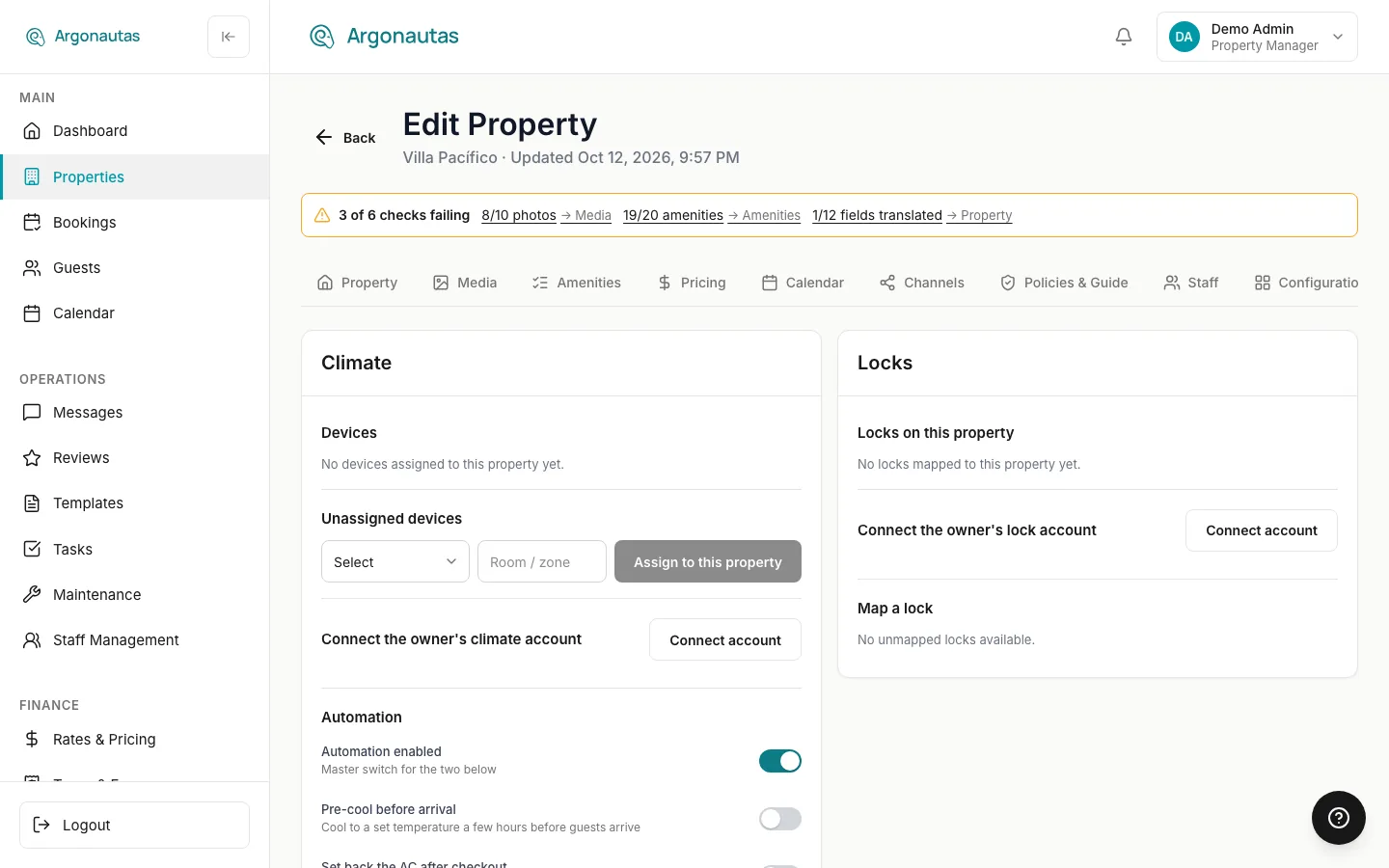
A discovered lock does nothing until it's mapped to a villa. Open the property's Smart Home tab and scroll to the Locks section:
- Map a lock: choose a lock from the dropdown and click Map lock. The dropdown lists every unmapped lock from all your company's lock accounts, including other owners' accounts, so check you're picking the right one. If there are none, you'll see "No unmapped locks available."
- Locks on this property: each mapped lock shows its name, an Online or Offline badge, its Battery level (when the lock reports one), and when it was Last seen. If none are mapped yet: "No locks mapped to this property yet."
- Unmap: removes a lock from this villa. It takes effect immediately with no confirmation, and it affects guests: any code on that lock stops showing in the guest's portal at once and is removed from the lock (see How Door Codes Work).
Lock names come from the lock account (the name given to the lock in the brand's app). Name your locks clearly there, such as "Front door" or "Pool gate", because guests see the same name next to their code.
Checking Locks in Settings
Settings → Integrations → Smart Home lists every lock account under Locks. Each shows:
- The account name and a status badge: Connected, Authentication failed, Error, or Not tested.
- Who it belongs to (an owner's name, or Company) and how many active locks it has.
- Test connection to re-check the credentials, and Discover devices to look for newly added locks.
Click Show locks on an account to expand its locks. Each row shows the lock's name, Online/Offline, the villa it's mapped to (or Unmapped), Battery, and Last seen. Click Hide locks to collapse the list. You can't map locks here; mapping happens on the villa's Smart Home tab.
How Door Codes Work
Once automatic door codes are switched on (see the note at the top), Argonautas looks after codes for you. It checks every few minutes, and immediately whenever a booking is saved.
Which reservations get a code
A reservation gets a code when all of these are true:
- Its status is Confirmed or Checked In.
- Its villa has at least one mapped lock whose account is connected.
- Check-in is 48 hours away or less.
Each mapped lock gets its own code. A villa with a front-door lock and a gate lock gives the guest two codes, one per lock.
When the code works
The code is valid from the villa's check-in time on the arrival date until its check-out time on the departure date, in your company's time zone. Argonautas sends the code to the lock up to 48 hours ahead, so it's ready in time. The lock only accepts it within that window.
When the guest sees it
The guest sees the code in their portal only from check-in time until check-out time, and only once the lock has confirmed the code is set. Before check-in, the portal tells them when it will appear. See Your Door Code for exactly what guests see.
When a code changes or is removed
| What happens | Effect on the code |
|---|---|
| Arrival or departure date changes | A new code is created for the new dates and the old one is removed. The guest keeps using the old code until the new one is ready. The guest isn't messaged about this; the new code simply replaces the old one in their portal. |
| Booking moved to a different villa | Codes on the old villa's locks are removed. Codes are created on the new villa's locks. |
| Booking Cancelled or marked No Show | The code is removed from the lock and the door-code card disappears from the guest's portal. |
| Booking marked Checked Out | The same: the code is removed and the card disappears, even if check-out time hasn't arrived yet. Don't mark a guest Checked Out while they still need to get back in. |
| Check-out time passes | The lock stops accepting the code, and it is removed from the lock. |
| Lock unmapped, or its account disconnected | The guest stops seeing the code in their portal immediately, and the code is removed from the lock. |
| Booking deleted | Any code already on the lock is removed. |
Map locks before guests arrive. Codes are only created for stays whose arrival date is no earlier than yesterday. If you map a lock to a villa where a stay began earlier than that, the guest already in the villa won't get a code on that lock for their stay. Give them access another way.
Who can see the code
- Guests see their own code in the guest portal, as described above.
- Staff don't see guest codes in Argonautas. The codes aren't shown anywhere in the admin.
- The door code in the Villa Guide is separate. It's whatever you typed into the villa's guide by hand (for example, a gate or lockbox code), and it's what the door-code placeholder in message templates inserts. It is not the automatic smart-lock code. See Villa Guide.
When something goes wrong
If a lock is offline or rejects a code, Argonautas keeps retrying. Meanwhile the guest sees "Your door code is being set up. Check back shortly." If it still can't set or remove a code, it raises an alert titled Smart lock code problem — [lock name] on the Alerts page (sidebar → Alerts). When a guest is due to arrive or is already staying, the alert is marked critical and is also emailed to your company's critical-alert recipients, if any are set up. Codes are never included in alerts.
When you get one of these alerts, check that the lock is Online and its battery isn't flat, then contact the guest with another way in if needed.
Disconnecting or Removing a Lock Account
In Settings → Integrations → Smart Home, each lock account offers one of two actions:
Disconnect: shown while the account is active and has locks. It switches off the account and all its locks, keeps their history, and affects guests' codes straight away. The confirmation spells out the effect:
- When there are no active codes: "Deactivate this connection and its locks? Guests will no longer see any door code for these locks."
- When there are active codes: "Disconnecting will revoke N active guest door code(s) immediately, and any guest currently checked in loses access to their code right away."
- If automatic door codes aren't switched on yet: "Any guest currently checked in loses access to their code in the guest portal immediately. N code(s) will remain on the lock(s) until smart-lock automation is enabled, then be revoked."
A disconnected account stays in the list, dimmed. To use those locks again, connect the account again and map its locks again.
Remove account: a permanent delete, offered only for an account where no locks were ever found, such as one added with the wrong credentials. The confirmation warns "This cannot be undone." An account that has locks can be disconnected but not removed, so its history is kept.
Disconnecting can't be undone with a single click, and it takes away the door codes of guests who are staying now. Check the villas' upcoming arrivals first.
Key Concepts
- Lock account (connection): a linked Tuya project, or an owner's Yale or Kwikset account linked through Seam. Company accounts are added in Settings; owner accounts are added from a villa's Smart Home tab.
- Mapped lock: a lock tied to one villa. Only mapped locks get guest codes.
- Door code: a code created for one reservation on one lock. It's valid from check-in to check-out and removed automatically afterwards.
- Seam: the secure connection service used for Yale and Kwikset. The owner signs in on Seam's page, and Argonautas never sees their password.
- Villa Guide door code: a fixed code you type into the villa's guide by hand. It's separate from automatic smart-lock codes.
Common Questions
A guest says they can't see a door code in their portal. Check the time first: codes appear only from check-in time on the arrival date. Before that, the guest sees when it will appear. Then check that the booking is Confirmed or Checked In, that the villa has a mapped lock that's Online, and look for a Smart lock code problem alert. If automatic door codes aren't switched on for the platform, no codes are created at all.
Can I see or change a guest's code? No. Codes are created randomly for each stay and aren't shown to staff. If a guest needs another way in, use a Villa Guide code or your usual backup, such as a lockbox.
Can I give a guest early check-in access? Not from the app yet. The code starts at the villa's check-in time. For an early arrival, arrange access another way.
The guest's dates changed. Do they need to do anything? Their code will change. The portal shows the new code once it's ready, and the old one keeps working until then. Argonautas doesn't message the guest about the change, so let them know to check their portal.
Why can't I connect Yale or Kwikset from Settings? Yale and Kwikset accounts always belong to a villa's owner, so they're connected from that villa's Smart Home tab.
I clicked Continue to Seam but no locks appeared. Make sure the sign-in finished in the Seam tab, then refresh the property page. It can take a moment for the locks to arrive. If you saw "Seam onboarding is disabled.", Yale and Kwikset aren't switched on yet; contact Argonautas support.
Why is Remove account missing on a lock account?Remove account appears only when no locks were ever found on the account. Use Disconnect instead.
Related
- Smart Home & Climate: The Smart Home panel and Sensibo climate control.
- Arrival Info & Directions: What guests see on their door-code card.
- Property Setup: Where the Smart Home tab lives on each villa.
- Booking Status: How Confirmed, Checked In, and Checked Out affect a stay.
- Villa Guide: The manually entered door and gate codes in each villa's guide.