Smart Home & Climate
Smart Home connects the devices in your villas to Argonautas. It covers two kinds of device:
- Climate: Sensibo air-conditioning controllers. See the current temperature and humidity, turn the AC on or off, change mode, temperature, and fan, and let Argonautas pre-cool the home before a guest arrives and set it back after checkout. This page covers climate in full.
- Locks: smart door locks (Tuya, Yale, and Kwikset). Argonautas can create a door code for each reservation and show it to the guest in their portal. Locks have their own guide: Smart Locks & Door Codes.
Smart Home lives in two places:
- Settings → Integrations → Smart Home: a company-wide panel with a Climate section and a Locks section. Here you connect your company's own accounts, test and discover them, and see every connection in one list, including accounts connected from a property on an owner's behalf.
- The property's Smart Home tab: where each device is tied to a villa, monitored, controlled, and given its automation rules. This is also where you connect an owner's own account for that villa.
Who can use it. Smart Home is limited to tenant admins and property managers. Concierges, staff, and owners do not see the Settings panel or the property tab.
What You Can Do With Climate
- Monitor each villa's live climate: the AC's current power, mode, and target temperature, plus the room's measured temperature and humidity from the controller's own sensor.
- Control the AC by hand: power, mode (cool, heat, and whatever else the unit supports), target temperature, and fan speed.
- Automate around reservations: cool the villa to a target temperature in the hours before arrival, and power off or drop to an energy-saving "eco" setback at checkout.
Before You Start
Climate control talks to Sensibo, so you will need:
- A Sensibo account that already owns the controllers (pods) in your villas, set up in the Sensibo app.
- That account's API key. You generate it in the Sensibo app under your account settings (look for the developer/API key section). The key is what lets Argonautas read and command the pods.
One Sensibo account can serve every villa it owns. If different homes are on different Sensibo accounts (for example, when an owner keeps their own Sensibo account), you can connect more than one.
Company Account or Owner Account?
Every connection belongs either to your company or to one owner:
| Connection | Where you create it | Shown in Settings as |
|---|---|---|
| Company account | Settings → Integrations → Smart Home | Company |
| Owner's account | The villa's Smart Home tab, under Connect the owner's climate account | The owner's name |
Use a company account for controllers your management company owns and manages. Use an owner's account when the owner has their own Sensibo account for their villa. Both kinds appear together in the Settings list, and their controllers are assigned to villas the same way.
Step 1: Connect a Sensibo Account
A company account (from Settings):
- Go to Settings, open the Integrations tab, and scroll to Smart Home.
- In the Climate section, enter an Account name (a label for your own reference, e.g. "Sensibo main account") and paste the API key.
- Click Connect Sensibo account.
An owner's account (from the villa):
- Open the property and select its Smart Home tab.
- Under Connect the owner's climate account, enter an Account name and the owner's API key.
- Click Connect account.
Connecting from the villa also discovers the account's controllers straight away. You'll see "Account connected. Discovered devices are ready to map below." This option needs the property to have an owner selected (on the Property tab, under Managed by → Owner). If it doesn't, the tab shows "This property has no owner entity. Connect a company account in Settings instead."
The account appears in the Settings list with a status badge and the owner it belongs to (or Company). Use Test connection at any time to re-check the key. The badge reads Connected when the key is good, or Authentication failed if the key was rejected. If a key is refused when you add it, re-copy it from Sensibo and try again.
Step 2: Discover the Controllers
On the connected account in Settings, click Discover devices. Argonautas asks Sensibo for every controller the account owns and lists them under the account. (Owner accounts connected from a villa are discovered automatically; you can click Discover devices again later if the owner adds a pod.)
If discovery finds nothing, you'll see: "Connected, but this account has no devices. Check you used the key from the account that owns the pods." This almost always means the API key came from the wrong Sensibo account: the login you used doesn't actually own the pods. Generate the key from the account that does.
Step 3: Assign Each Controller to a Villa
A discovered controller starts Unassigned. It does nothing useful until it is tied to a property.
Open the property, go to its Smart Home tab, and use the Unassigned devices row (see below). Once assigned, the controller's live state and controls appear on that villa's Smart Home tab.
Controlling a Villa's Climate
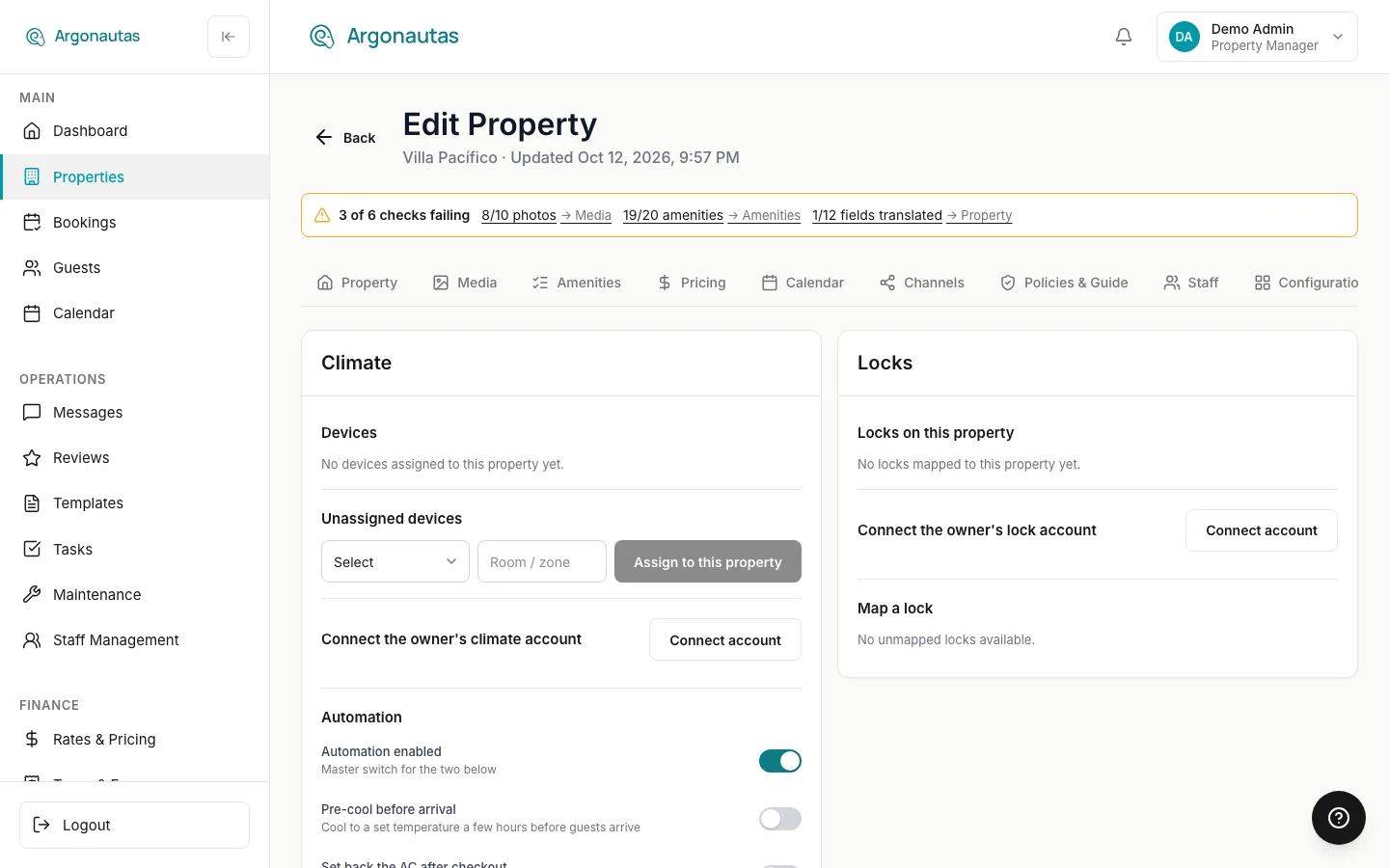
Open a property and select the Smart Home tab. Its Climate section has four parts. (The Locks section next to it is covered in Smart Locks & Door Codes.)
Devices
Each controller mapped to this villa shows a live card:
- Power: On or Off, as the AC is currently set.
- Mode: cool, heat, auto, fan, dry (only the modes the unit actually supports).
- Temperature: the AC's target temperature (what it's set to reach).
- Measured: the actual room temperature from the controller's sensor.
- Humidity: the room's measured humidity.
A Room / zone label (e.g. "Master bedroom") is editable (type it and click Save), so a villa with several pods reads clearly. Refresh re-reads the controller on demand, and a "Reported … ago" line tells you how fresh the state is.
To change anything, use the controls on the card: the Power toggle, the Mode dropdown, the Temperature stepper (− / +, stepping through the values the unit accepts), and the Fan dropdown. Each change is sent to the controller immediately, and the card refreshes to show the result.
"As reported by the provider, not independently confirmed." The power, mode, and target temperature are what Sensibo remembers it last set, not a guaranteed reading of the physical unit. The Measured temperature and Humidity, by contrast, are live sensor readings. If someone changes the AC with the physical remote, Sensibo may not know until the pod next reports in; use Refresh to pull the latest.
Unassigned Devices
This row attaches a controller that isn't on any villa yet: pick it from the dropdown, optionally type a Room / zone, and click Assign to this property. The dropdown lists every unassigned controller from all of your company's connected accounts, company and owner alike, so check you are picking the right one.
Connect the Owner's Climate Account
Connect the villa owner's own Sensibo account here, as described in Step 1. Its controllers then appear in the Unassigned devices dropdown, ready to assign.
Automation
Automation drives the AC around each reservation, so the villa is comfortable when the guest walks in and not cooling an empty house after they leave. It applies to all of the villa's mapped controllers.
- Automation enabled: the master switch for this villa. Turn it off to pause every rule below without losing the settings.
- Pre-cool before arrival: start cooling ahead of check-in. Set Hours before arrival (how early to start, e.g. 3), the Target temperature to reach, and the Pre-cool mode and Pre-cool fan.
- On checkout: what to do when the guest leaves. Choose a Checkout action of Power off (shut the AC down) or Eco setback (leave it running at an energy-saving Eco target temperature and Eco mode, e.g. hold 26°C so the home never gets truly hot).
Click Save automation to store the rules. Target temperatures sit in the normal comfort band (roughly 16--30°C). If you enable pre-cool without a target temperature, the form reminds you: "Set a target temperature to enable pre-cool." The eco setback has the same check: "Set an eco target temperature to enable checkout setback."
From then on, each booking for this villa triggers the rules automatically: the pre-cool runs in the window before arrival, and the checkout action runs when the guest departs. You don't schedule anything by hand.
Reservation automation is switched on by Argonautas. Automatic pre-cool and checkout actions run only once climate automation has been enabled for the platform by the Argonautas team. It is not a setting in the app. Until then you can still connect accounts, assign controllers, control the AC by hand, and save your automation rules; the rules simply don't fire. If your rules never seem to run, contact Argonautas support to check.
Removing a Climate Account
In Settings → Integrations → Smart Home, each climate account offers one of two actions, depending on whether it has controllers:
- Disconnect: shown while the account is active and has controllers. It stops the account's controllers from responding to app commands and pauses their automation, but keeps the command history. Use it to take an account offline. You're asked to confirm: "Its devices stop responding to app commands until you reconnect. The command history is kept." A disconnected account stays in the list, dimmed.
- Remove account: a permanent delete, offered only when the account has no controllers. Use it to clean up a mistyped key or an account that turned out to be empty. The confirmation names the account and warns "This cannot be undone." If controllers are still attached, Argonautas blocks it: "Disconnect devices before removing this account."
Lock accounts have their own rules for disconnecting, because disconnecting affects guests' door codes. See Smart Locks & Door Codes.
Key Concepts
- Connection: a linked Sensibo (or lock) account. Company connections are added in Settings; owner connections are added from a villa's Smart Home tab. All of them are listed in Settings.
- Controller (pod): one physical Sensibo unit controlling one AC. Discovered from a connection, then assigned to a villa.
- Reported vs. measured: reported power/mode/target is what Sensibo remembers it set; measured temperature/humidity are live sensor readings. Refresh to reconcile.
- Automation policy: the per-villa pre-cool and checkout rules. Applies to every controller on that villa.
- Disconnect vs. Remove: Disconnect pauses and keeps history; Remove permanently deletes an account that has no controllers.
Common Questions
Which devices does Argonautas support? For climate, Sensibo controllers, connected with a Sensibo API key. For locks, Tuya, Yale, and Kwikset (TTLock, Aqara, and Schlage are shown as Coming soon). See Smart Locks & Door Codes.
I connected an account but the villa's Smart Home tab is empty. Connecting is only the first step. Click Discover devices on the account in Settings (owner accounts connected from a villa are discovered for you), then assign each controller to a villa from its Smart Home tab. Until a controller is assigned, no villa shows it.
I don't see "Connect the owner's climate account", only a note about the owner entity. The property has no owner selected. Open the Property tab, set Managed by to Owner, choose the owner, and save. Or connect the account as a company account in Settings instead.
The state on screen doesn't match the AC in the room. The power/mode/target values are what Sensibo last remembered setting, not a live reading. Someone may have used the physical remote. Click Refresh to pull the current state. The Measured temperature and humidity are always live.
Does pre-cool run for every booking? Yes, as long as Automation enabled and Pre-cool before arrival are on for that villa and climate automation is enabled for the platform. The rule runs in the hours-before-arrival window you set, for each reservation.
What's the difference between Power off and Eco setback at checkout?Power off shuts the AC down completely between guests. Eco setback keeps it running gently at your eco target (say 26°C) so the home never becomes uncomfortably hot or humid, which can be kinder to the property in a tropical climate. Pick whichever suits the home.
Can I still control the AC by hand while automation is on? Yes. Manual control and automation coexist. The automation acts at arrival and checkout, and you can override the AC by hand at any time from the Smart Home tab.
Related
- Smart Locks & Door Codes: Connect locks and give each guest an automatic door code.
- Property Setup: Where the Smart Home tab lives on each villa.
- Settings Guide: General settings and integrations.
- Google Calendar Sync: Another property integration managed from Settings.