
Concierge Access & Workflow
A concierge looks after guest services and pre-arrival planning (trip portfolios, service requests, providers) without touching payments or property configuration. This page covers how to grant that access, what a concierge sees when they log in, and the day-to-day tools built for the role.
Concierge Access
Concierge is one of the access types (or "hats") you can give a login. A person can wear several at once, for example Concierge plus Reservations, and they see everything each of their hats allows. See Users and Permissions for the full list and how to combine them.
A concierge can read and update Bookings, Guests, the Calendar, Reviews, and Templates, the guest-facing day-to-day screens, but not the money path (payments, invoicing settings) or property configuration.
Granting concierge access
Two ways, and they stay in sync:
- From Users & Roles. Open the user and tick Concierge (helper text: "Guest services & pre-arrival"). It can sit alongside any other hat. Save.
- From a staff position. If the person has a staff record, giving them the Concierge or Head Concierge position grants concierge access automatically, and removing or deactivating that position revokes it.
Which homes are "theirs"
A concierge's own homes are the properties they are assigned to as Concierge, Online Concierge, or Onsite Concierge on the property's Staff tab (or on their staff record). Concierge lists and counts start from those homes. See My Homes vs. Company-Wide below. A concierge with no such assignment sees the whole company.
The Concierge Workspace
What the sidebar looks like depends on which hats the person wears.
Concierge only
A user whose only hat is Concierge works inside a dedicated concierge workspace: the same concierge sidebar and top bar on every page, including the shared Bookings, Guests, and Calendar screens. The sidebar lists:
- Dashboard: the concierge home, with today's numbers and the guest requests to action.
- Turnovers: the day-by-day agenda of departures, arrivals, and in-house guests.
- Portfolios: each booking's trip portfolio (its itinerary of services).
- Services: the Service Queue, listing every service request across bookings.
- Bookings, Guests, Calendar: the shared booking and calendar screens.
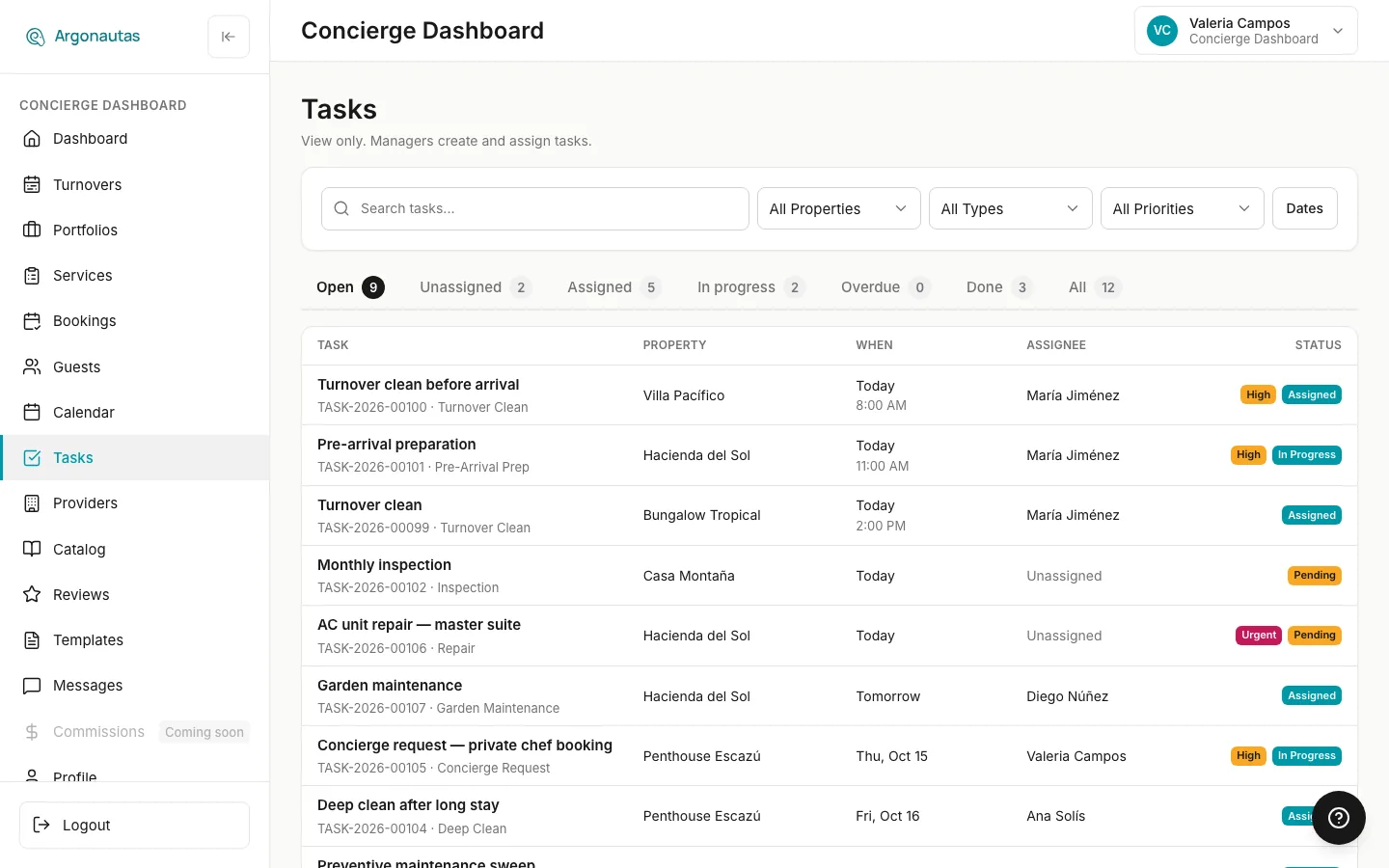
- Tasks: the company's task board at
/tasks, so you can see who is cleaning or fixing what. Concierges can read it but not change it: there is no New task, Assign, Edit, Verify or Cancel for them. - Providers: the service providers directory.
- Catalog: the service catalog.
- Reviews, Templates: shared screens for guest reviews and message templates.
- Messages: the concierge inbox.
- Commissions: labeled Coming soon for now.
- Profile and Account & Security: the concierge's own profile and login security (password, two-factor, passkeys, sessions).
Concierge plus another hat
Someone who is a concierge and also Reservations, Property Manager, or Admin works from the main sidebar instead. It shows everything their other hat allows (for a reservations agent that includes Properties, so they can open a property's Calendar tab to add or edit availability blocks), plus a Concierge section with Concierge Dashboard, Portfolios, Services, Turnovers, Providers, and Catalog. The top bar shows all their hats, for example "Reservations · Concierge".
The Concierge Dashboard
The four cards at the top of the dashboard (Arrivals Today, Departures Today, Guests In House, and Pending Requests) are clickable:
| Card | Click opens |
|---|---|
| Arrivals Today | Portfolios, filtered to today's arrivals. |
| Departures Today | Portfolios, filtered to today's departures. |
| Guests In House | Portfolios, filtered to guests currently staying. |
| Pending Requests | The Service Queue, filtered to Open (pending) requests (Requested or Awaiting provider). |
When you arrive on Portfolios from a card, a banner at the top names the filter (for example Arrivals today) with a Clear button to go back to the full list. The View All link beside the Pending Requests list opens the same filtered Service Queue.
Below the cards, the Today block lists today's departures and arrivals, Pending Requests lists the first ten open requests, and In-House Guests shows one row per stay. The dashboard covers your own homes. See the Concierge Module Overview for what each block shows.
My Homes vs. Company-Wide
Portfolios, Services, and Turnovers each have a My homes / Company-wide switch in the page header:
- My homes (the default): only the properties you're assigned to as a concierge.
- Company-wide: every property in the company, for when you're covering for a colleague.
The concierge dashboard always uses your own homes. Admins, property managers, and anyone without a concierge assignment see every property either way, so the switch only narrows the view for assigned concierges.
Turnovers: The Day-by-Day Agenda
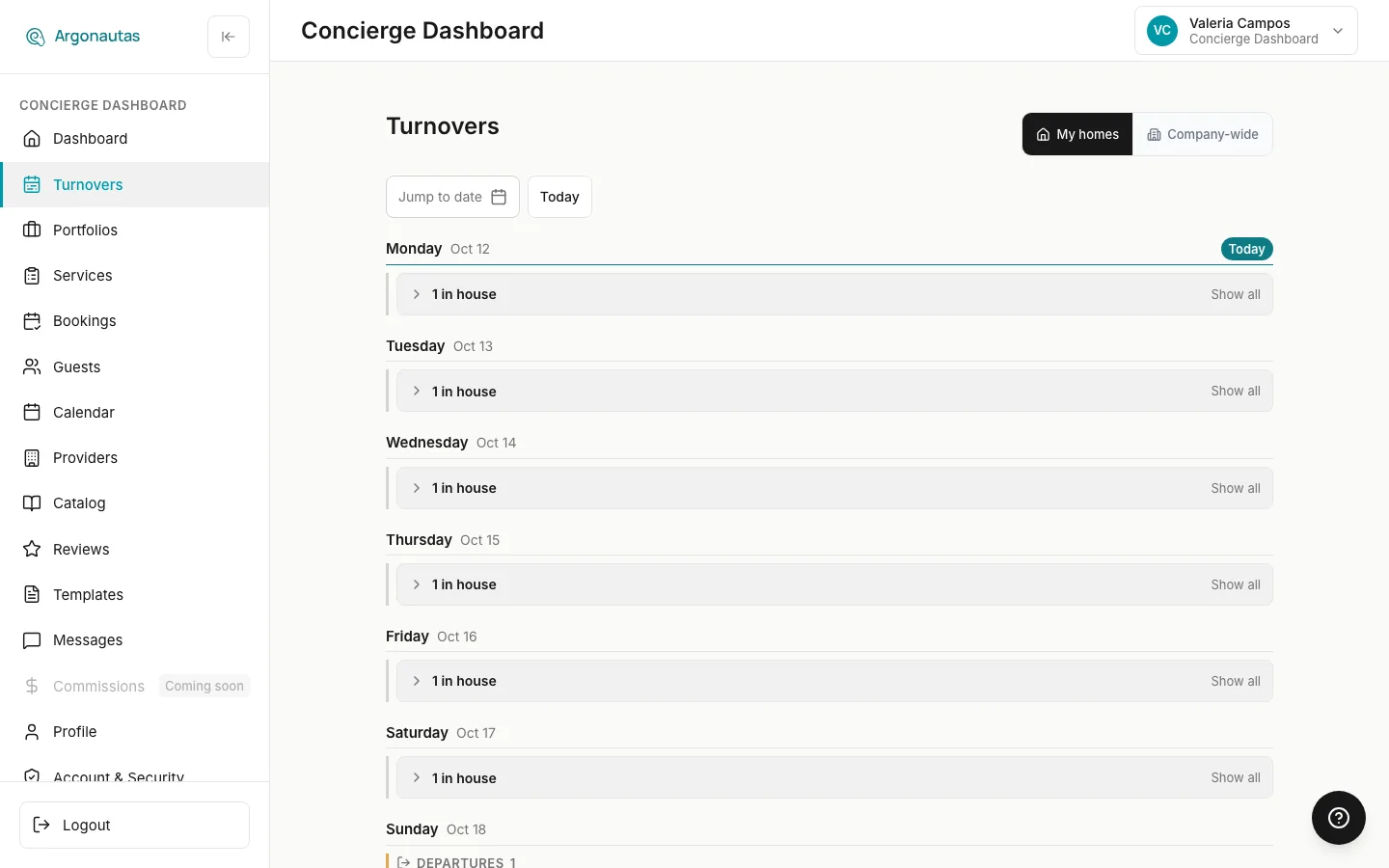
Turnovers answers "what's happening at my homes each day?" It shows a vertical agenda, one section per day, starting today. Each day has up to three groups:
- Departures: guests checking out that day.
- Arrivals: guests checking in that day.
- In house: guests mid-stay (neither arriving nor leaving that day).
Departures and arrivals are always listed in full. On a wide screen they sit side by side. In-house guests are folded into one line, for example 3 in house. Click Show all on that line to list them, and Hide to fold them again. An in-house guest with something happening that day is never hidden: they appear above the line under In house, needs attention.
A stay appears under Arrivals on its first day, under In house on each day in between, and under Departures on its last day, never twice on the same day. Days with nothing happening are skipped, and today's header is marked Today.
Each row shows the property, the guest name, and the number of guests, plus two chips that appear only when there's something to flag:
- Calendar chip: services scheduled for that guest on that day. A chef dinner on Tuesday shows only on Tuesday's row, not across the whole stay.
- Alert chip: open service requests on that booking that still need action (Requested or Awaiting Provider), the same requests the dashboard counts as pending.
Tap a row to open the guest's trip portfolio, or the booking if it has no portfolio.
To move around, use Jump to date to start the agenda on a different day, Today to come back, and Load more days at the bottom to extend it two weeks at a time. The My homes / Company-wide switch works as on the other concierge lists. Rows are large enough to tap easily on a phone.
Why here and not in Google Calendar? Google Calendar sync shows each booking as a single event. The per-day grouping of departures, arrivals, and in-house guests, and the service and request chips, live in Turnovers. See Google Calendar Sync.
Marking a Request Handled
Sometimes a concierge arranges a service offline, such as a phone call to the chef or a booking made in person, and just needs to close the request in the system. That's Mark handled.
Mark handled differs from Confirm: it does not email the guest and does not create a commission for the provider. It simply closes the request as arranged, while the guest still sees it as confirmed on their side, and the record (and its history) is kept. Its tooltip says exactly that: "Already handled offline. Closes it without emailing the guest."
You'll find it in two places, while a request is still open (Requested or Awaiting Provider):
- On the service's card in the Trip Portfolio, next to Confirm and Cancel.
- On the Concierge Dashboard, as the checkmark on each pending-request row, next to the X (Cancel request).
Mark handled records the request as completed on your side and shows it as confirmed to the guest. If the request was sent to the provider and is still waiting for their reply, Recall it first: the portfolio hides Mark handled until you do, because closing it quietly would leave the provider's link live. Once a request is cancelled or completed, Mark handled no longer applies.
Confirm vs. Mark handled vs. Cancel. Confirm books the service through Argonautas: it notifies the guest and records the provider commission. Mark handled quietly closes something you arranged yourself offline. Cancel request cancels the service: the guest gets a cancellation message, and the provider is told if they had the request.
Getting an Email for New Requests
By default, a new guest service request appears on the Concierge Dashboard and nowhere else. No email is sent. A concierge who wants a nudge can opt in:
Go to Account & Security › Notifications and turn on Email me about new guest requests ("When a guest submits a service request through the guest portal"). This toggle appears only for concierge users. It adds an email each time a guest submits a request; it never removes the request from the dashboard, which is always the source of truth.
The Concierge Inbox
Messages in the concierge-only sidebar shows the conversations assigned to you. A concierge who also has the Reservations hat sees every conversation instead, the same full inbox reservations agents use.
Filtering to current guests
In the inbox, the Booking filter offers All bookings (the default) and Confirmed only. Confirmed only means a current guest: both upcoming (confirmed) reservations and in-house (checked-in) guests. It's the right filter when you want to focus on the people you're actively serving and hide inquiries and past stays. Switch back to All bookings to see everything, including guests who have already checked out. Argonautas remembers your choice for next time.
Key Concepts
- Concierge hat: read/write on guest, booking, and calendar data; no money path, no property configuration. Can be combined with other hats.
- My homes: the properties you're assigned to as Concierge, Online Concierge, or Onsite Concierge. Concierge lists start here; Company-wide widens them.
- Turnovers: the day-by-day agenda of departures, arrivals, and in-house guests.
- Confirm: book a service through Argonautas. It notifies the guest and records a commission.
- Mark handled: close a request arranged offline. No guest email, no commission, and the record is kept.
- Cancel request: cancel a request you won't arrange. The guest is told.
- Confirmed only: an inbox filter for current guests (confirmed + checked-in).
Common Questions
A team member only handles guest services. What access do they need? Just Concierge. It gives them Bookings, Guests, Calendar, Reviews, Templates, and the concierge tools, without exposing payments or property setup.
I gave someone the Concierge staff position but not the checkbox. Do they have access? Yes. An active Concierge (or Head Concierge) position grants concierge access on its own, and removing it revokes access.
A concierge says their Portfolios list is missing guests. The list starts on My homes, so it only shows the properties they're assigned to as a concierge. Switch to Company-wide to see every property, or assign them to the missing homes on each property's Staff tab. Also note that past and cancelled stays are hidden until you tick Show archived.
Our concierge also works reservations one day a week. What changes for them? Give them both the Concierge and Reservations hats. They then work from the main sidebar, with Properties (to manage availability blocks from a property's Calendar tab), the full inbox, and a Concierge section for their concierge tools.
I used Mark handled. Why didn't the guest get an email? That's the point of Mark handled: it closes a request you arranged offline without emailing the guest or creating a commission. Use Confirm instead when you want Argonautas to notify the guest and record the commission.
A concierge says they're not getting request emails. Those emails are opt-in. Have them turn on Email me about new guest requests in Account & Security › Notifications. Requests still appear on the dashboard regardless.
Why does a concierge only see some conversations in Messages? The concierge inbox shows conversations assigned to them. If they also need every conversation, give them the Reservations hat.
Related
- Concierge Module Overview: the concierge module as a whole.
- Trip Services: service requests and the itinerary where Mark handled lives.
- Users and Permissions: hats, and how to grant them.
- Calendar & Availability: editing availability blocks from the calendar.
- Messaging Guide: the inbox and its filters.